
How Availability Works for Team Event Types
A manager can create the team event type, while each team member still controls real availability through their own connected calendars.
23 Jun 2026 · by Peter Grillet
Team event types are designed so a manager can standardise the meeting setup (titles, descriptions, forms), without forcing team members to appear available when they are busy.
Who controls what
Manager controls (event-level settings)
The person creating/editing the team event type controls the shared rules, such as:
- Event name and duration
- Booking increment
- Location type
- Buffers before/after meetings
- Baseline availability settings for the event type
- Assignment strategy (round robin, default assignee, visitor select)
- Which teams are linked to the event type
Team member controls (actual day-to-day availability)
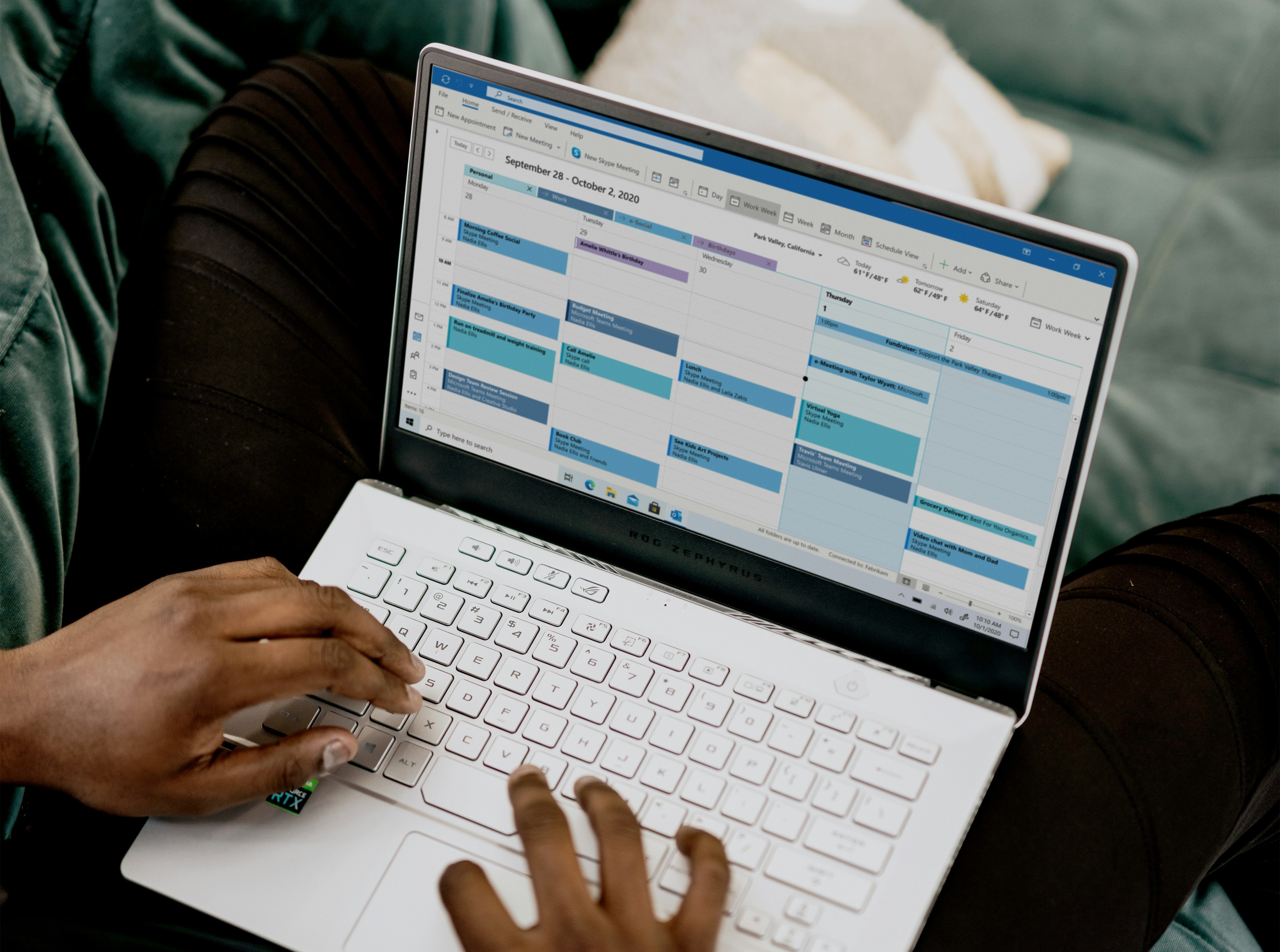
Even if the manager created the event type, each team member controls real availability by managing their own connected calendars (Google and/or Microsoft).
If a team member blocks time in their calendar, those busy times are removed from available booking slots for that member.
Why this matters
This setup gives you both:
- Consistency: Managers define one standard meeting type for the team.
- Flexibility: Team members stay in control of when they can actually be booked.
So a manager can publish a team event type, but no one gets booked during times that are already busy in their own calendars.
How to manage it
- Create/edit the team event type in Team Event Types.
- Link the correct teams in Assign to Teams.
- Open Manage Team Member Access and ensure the right members are active.
- Each team member keeps their own calendars connected and up to date so busy time is respected.
Practical example
A manager creates a “Client Review” team event type for the Customer Success team.
Even though the setup is shared, Sarah won’t show as available at 3:00 PM if she already has a Google or Microsoft calendar event at that time.
Even though the setup is shared, Sarah won’t show as available at 3:00 PM if she already has a Google or Microsoft calendar event at that time.
Related help articles
Connect Notion to Calendr
When someone confirms a booking or submits a qualifying form, Calendr can create or match a contact in your contacts database and create a linked deal (or opportunity) in your deals database — without copying names and emails by hand. This guide explains what the integration does and how to set it up.
How Multi-Host Event Types Work
Multi-host event types let bookers schedule meetings that require more than one team member. Learn how primary and additional hosts work, why the distinction matters, and what happens when someone books a slot.
Team Event Type fallback options (and when to use each)
Team Event Types let you control how bookings are routed across your team. Choose between Round robin, Default assignee, or Visitor select, and use fallback behavior to avoid losing bookings when a team member is unavailable.